









From text to looping GIFs

ChatGPT GIF Maker

Describe a reaction, a character, or a funny moment. Turn your words into a looping GIF, make a few simple adjustments, and download it for your next message or post.

5 credits per GIF — adjust the details on the next screen if you want more frames.

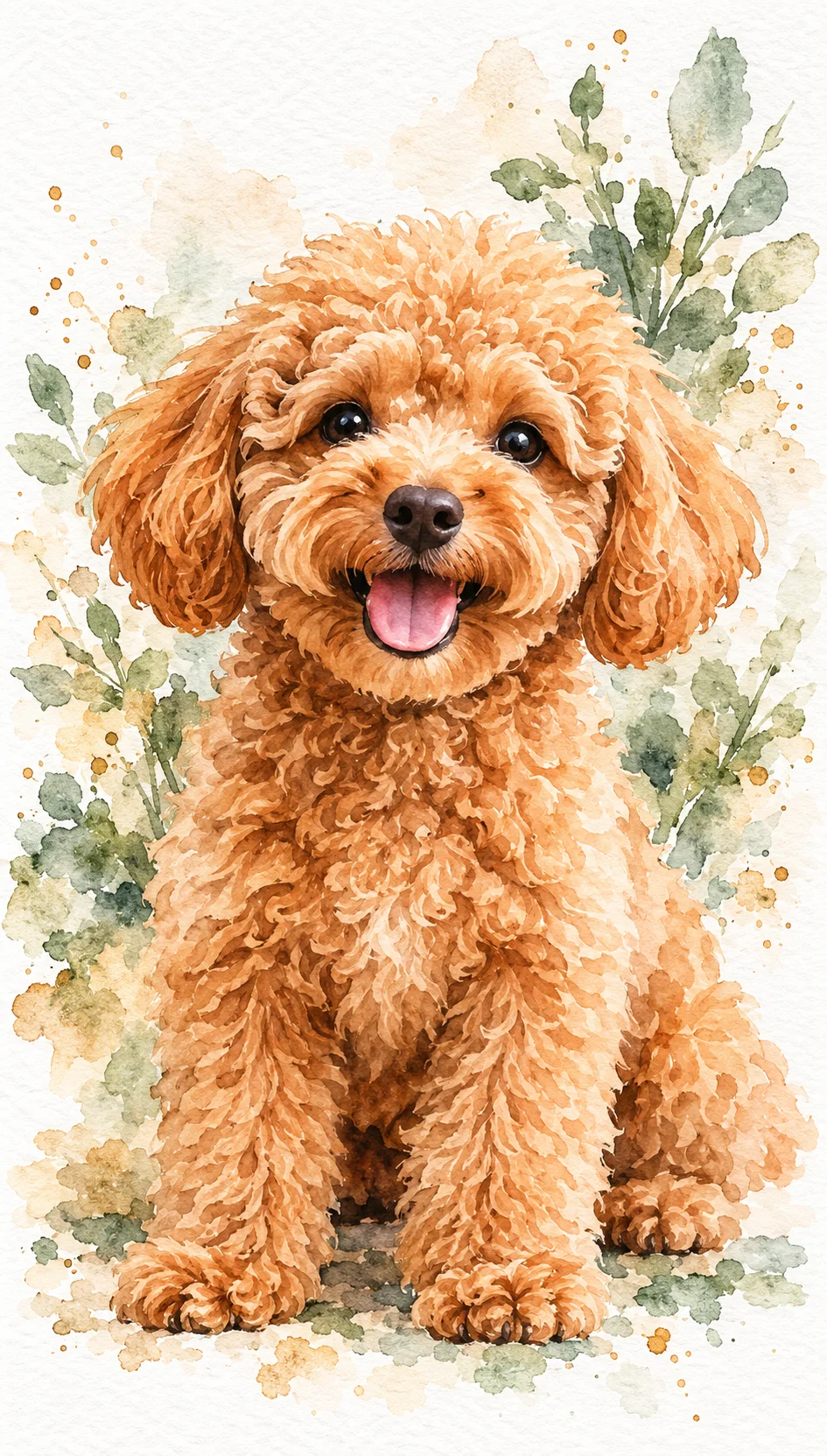
A text prompt turned into a short looping character animation

Turn a written idea into a looping GIF

ChatGPT GIF Maker is an AI GIF generator for short animations made from text. Describe the subject, the action, and the style you have in mind. Use the result as a reaction in a group chat, a character greeting, or a GIF for a social post. Preview the motion, make any small adjustments, and download the version you want to share.

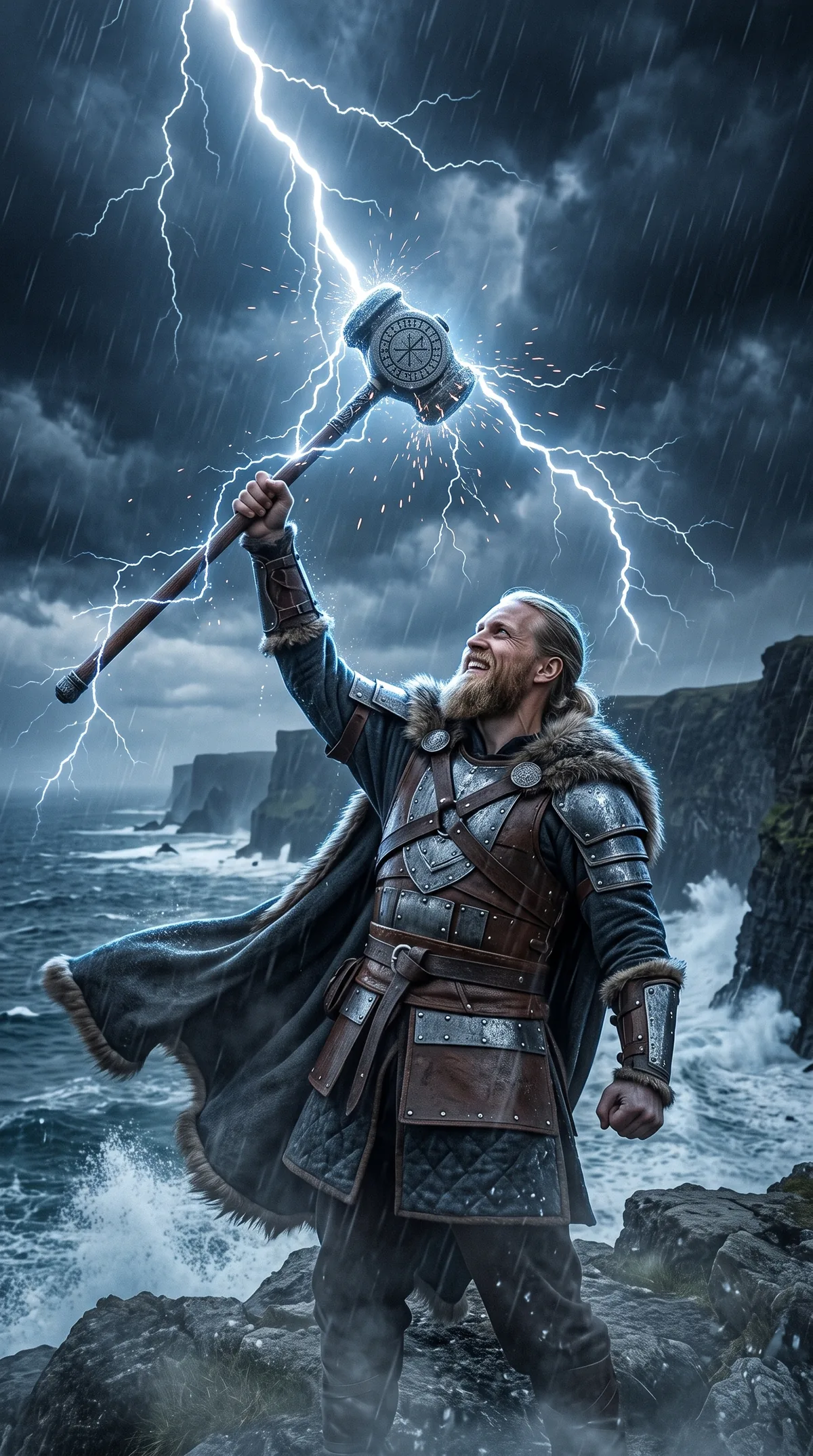
A waving robot and a blinking cat created from different text prompts

Start with the moment you want to show

Sometimes you know exactly how a reaction should look. Put that idea into words, including the expression, the movement, and any visual details that matter. A waving robot and a cat giving a slow blink make very different GIFs. A clear prompt gives the generator a specific scene to work with, while the preview helps you decide whether it captures your idea.

Ideas for your next GIF

Start with one subject and a simple action. These everyday uses give you a few places to begin.

A character slowly blinking in a looping reaction GIF

GPT GIF Maker

@gifgpt

A reaction that fits the conversation

Describe the feeling you want to send, then give it a visible action. A slow blink can suggest disbelief, while a small nod can show agreement. Keep the expression easy to recognise so the GIF makes sense when it appears in a chat preview.

A mint-green robot waving and returning to its starting pose

GPT GIF Maker

@gifgpt

A little movement for your character

Give a character one short gesture, such as a wave, a bow, or a clap. Include its colours and visual style in the prompt. Describe how it returns to its starting pose to help the motion repeat smoothly.

A curious cat looking inside an empty fridge

GPT GIF Maker

@gifgpt

An everyday moment turned into a meme

An empty fridge or another full calendar can be the start of a GIF. Describe what happens and how the character reacts. Keep the scene focused on one joke, then add a short caption if the words help explain it.

A finished looping GIF prepared for sharing in a chat or social post

GPT GIF Maker

@gifgpt

A GIF ready for your next post

Once you like the animation, check that the subject and any caption are clear at a small size. Choose a suitable export crop and download the GIF. Keep that file if you want to share the same version again later.

How to make a GIF from text

Follow the idea from your first sentence to a GIF you can download and share.

  1. Describe your idea

    Write who or what appears, what it does, and how it should look. Try “a clay robot waves, lowers its hand, and returns to its starting pose.”

  2. Generate and preview

    Generate the animation and watch it repeat. Check that the action and expression match what you had in mind. Refine the prompt if the scene needs a different direction.

  3. Make simple adjustments

    Check the loop and adjust the caption if you need one. Keep the text clear of the subject and make sure it is readable at a small size.

  4. Download and share

    Choose the export crop, download your GIF, and play the saved file once before posting it. You can then share it in a chat or social post that supports GIFs.

Questions about making GIFs

A few practical answers about prompts, looping, and sharing your finished GIF.

What is a ChatGPT GIF maker?

It is a tool for turning a text description into a short looping GIF. You describe a subject and an action, generate the animation, then prepare the result for sharing.

What should I include in my prompt?

Include the subject, one main action, and the visual style. For a loop, describe how the movement returns to its starting point. A prompt such as “a mint-green robot waves and lowers its hand, clay style, seamless loop” is a useful starting point.

What kinds of GIFs can I make?

You can describe reaction GIFs, short character animations, and visual jokes. Simple scenes with one clear action are a good place to start. Use the preview to check how closely the result matches your idea.

What if the generated GIF does not match my idea?

Check which part needs work, such as the character's appearance or the movement. Revise that part of the prompt and try again, keeping the details you want to preserve. If the action is confusing, simplify it to one short gesture. Changing one thing at a time makes the results easier to compare.

How can I make the motion loop smoothly?

Choose an action that can repeat, such as blinking or waving and returning to rest. Watch the preview for a visible jump between the end and the beginning. You may need to refine the motion or adjust the loop before sharing.

What can I adjust after generation?

You can adjust the loop point, the caption and its position, and the export crop. If you want a different subject or action, revise the prompt and generate another version.

How can I keep captions readable on a phone?

Use a short caption and place it away from the main expression or movement. Choose text that stands out against the background, and check the GIF at the size it will appear in a chat or feed. If the words are hard to read, shorten the line or increase the text size before exporting.

What shapes can I export?

Square, portrait, and landscape. Choose the shape that suits where you plan to share the GIF, and check that the crop keeps the subject and caption visible.

How do I keep a GIF I like?

Download the finished GIF and keep the file so you can share the same version again. Saving the prompt is useful for making variations, but generating it again can produce a different result.

How much does it cost?

See the pricing page for the available plans, credit allowances, and current prices. Check the plan details before choosing an option.